WordPress Security Checklist: 15 Essential Steps to Protect Your Small Business Website in 2024
As a small business owner in Western Sydney, your WordPress website is often the first point of contact between you and potential customers. But did you know that WordPress sites are targeted in 90% of all hacked CMS websites? At Cosmos Web Tech, we’ve seen firsthand how a security breach can devastate a small business – from lost revenue and damaged reputation to costly recovery processes. That’s why our WordPress development services include comprehensive security hardening from day one.
The good news? Most WordPress security issues are entirely preventable with the right approach. This comprehensive checklist will walk you through the essential security measures every small business should use to protect their WordPress website from cyber threats.
Why WordPress Security Matters for Small Businesses
Many small business owners assume they’re “too small” to be targeted by hackers. This couldn’t be further from the truth. In fact, 43% of cyber attacks target small businesses, and the average cost of a data breach for small businesses is $2.98 million according to IBM’s 2023 Cost of a Data Breach Report.
For Western Sydney businesses, a security breach can mean:
- Lost customer trust and reputation damage
- Downtime affecting sales and operations
- Legal compliance issues and potential fines
- Costly recovery and remediation processes
- Search engine penalties affecting your SEO rankings
WordPress’s popularity (powering 43% of all websites) makes it an attractive target for cybercriminals. However, most vulnerabilities stem from outdated software, weak passwords, and poorly configured security settings – all issues that are easily addressable with proper planning.
Foundation Security: Updates, Backups, and User Management
Keep Everything Updated
The most critical security measure is maintaining current versions of WordPress core, themes, and plugins. 78% of WordPress vulnerabilities are found in plugins, making regular updates essential.
WordPress Core Updates:
- Enable automatic updates for minor releases
- Test major updates on a staging site first
- Update within 48 hours of security releases
Plugin and Theme Updates:
- Review and update plugins monthly
- Remove unused plugins and themes immediately
- Choose plugins with regular update schedules
- Verify plugin compatibility before updating
Pro Tip: Set up email notifications for available updates, but always test updates on a staging environment for business-critical websites.
Use Robust Backup Systems
Backups are your safety net when security measures fail. A comprehensive backup strategy should include:
Automated Daily Backups:
- Full site backups (files and database)
- Store backups off-site (cloud storage)
- Test restoration process monthly
- Maintain at least 30 days of backup history
Recommended Backup Plugins:
- UpdraftPlus: User-friendly with cloud storage integration
- BackupBuddy: Comprehensive features for business sites
- Jetpack Backup: Real-time backups with easy restoration
Secure User Management Practices
Weak user management is a common entry point for attackers. Use these practices:
Strong Password Policies:
- Minimum 12 characters with mixed case, numbers, and symbols
- Use password managers like 1Password or LastPass
- Enforce password changes every 90 days
- Never reuse passwords across platforms
User Role Management:
- Assign minimum necessary permissions
- Regularly audit user accounts
- Remove inactive user accounts
- Use unique usernames (avoid “admin”)
Two-Factor Authentication (2FA): Use 2FA for all user accounts, especially administrators. Recommended plugins include:
- Wordfence Login Security
- Two Factor Authentication
- miniOrange’s Google Authenticator
Advanced Protection: Firewalls, Monitoring, and SSL
Website Application Firewall (WAF)
A WAF acts as a barrier between your website and potential threats, filtering malicious traffic before it reaches your server.
Cloud-Based WAF Solutions:
- Cloudflare: Free tier available with DDoS protection
- Sucuri: Specialized in WordPress security
- Wordfence: Popular WordPress security plugin with WAF
Key WAF Features to Enable:
- Malware scanning and removal
- Brute force attack protection
- IP blocking and country restrictions
- Rate limiting to prevent spam
Security Monitoring and Malware Detection
Proactive monitoring helps detect threats before they cause significant damage.
Essential Monitoring Features:
- File integrity monitoring: Alerts when core files are modified
- Login attempt monitoring: Tracks failed login attempts
- Malware scanning: Regular automated scans
- Uptime monitoring: Alerts when your site goes down
Recommended Security Plugins: Wordfence Security:
- Comprehensive malware scanner
- Real-time threat intelligence
- Login security features
- Free and premium versions available
Sucuri Security:
- Security activity auditing
- File integrity monitoring
- Remote malware scanning
- Post-hack security actions
SSL Certificate Implementation
SSL certificates encrypt data between your website and visitors’ browsers, essential for both security and SEO.
SSL Benefits:
- Protects sensitive data transmission
- Improves search engine rankings
- Increases customer trust
- Required for e-commerce functionality
SSL Implementation Steps: 1. Obtain SSL certificate from your hosting provider 2. Install and configure the certificate 3. Update WordPress URLs to HTTPS 4. Set up 301 redirects from HTTP to HTTPS 5. Update internal links and references 6. Test all functionality post-implementation
Server and Hosting Security Measures
Choose Security-Focused Hosting
Your hosting provider is your first line of defense. Look for providers offering:
Essential Hosting Security Features:
- Regular server updates and patches
- Malware scanning and removal
- DDoS protection
- Secure data centers
- 24/7 security monitoring
- Automated backups
Recommended WordPress Hosting Providers:
- WP Engine: Premium managed WordPress hosting
- SiteGround: Strong security features at competitive prices
- Kinsta: Google Cloud-powered with advanced security
Secure File Permissions
Proper file permissions prevent unauthorized access to sensitive files.
Recommended WordPress File Permissions:
- Folders: 755 or 750
- Files: 644 or 640
- wp-config.php: 600
- wp-admin: 750
Database Security
Protect your WordPress database with these measures:
Database Security Best Practices:
- Change default table prefix from ‘wp_’
- Use strong database passwords
- Limit database access to necessary users
- Regular database cleanup and optimization
- Enable database connection encryption
Database Hardening Steps:
{`// Add to wp-config.php
define('DISALLOW_FILE_EDIT', true);
define('WP_DEBUG', false);
define('FORCE_SSL_ADMIN', true);`}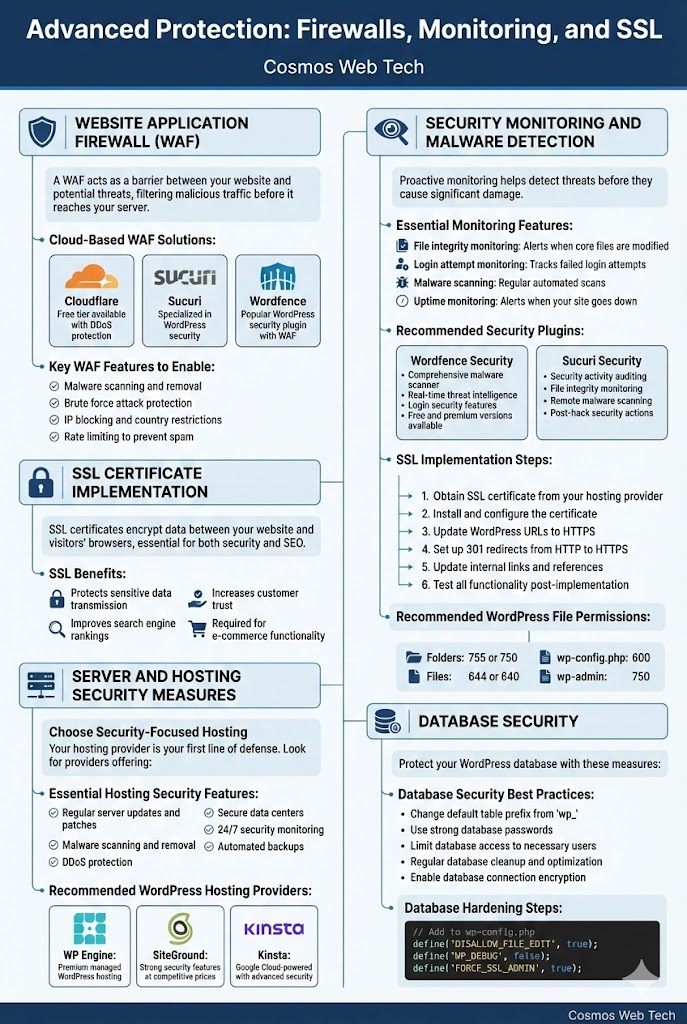
WordPress-Specific Security Hardening
Protect wp-config.php and Sensitive Files
The wp-config.php file contains sensitive database information and should be heavily protected.
wp-config.php Security Enhancements:
{`// Security keys (generate unique keys)
define('AUTH_KEY', 'your-unique-key-here');
// ... other keys

// Disable file editing
define('DISALLOW_FILE_EDIT', true);

// Force SSL for admin
define('FORCE_SSL_ADMIN', true);

// Limit login attempts
define('WP_LOGIN_ATTEMPTS', 3);`}
.htaccess Security Rules
Add these security rules to your .htaccess file:
{`# Protect wp-config.php

order allow,deny
deny from all


# Disable directory browsing
Options -Indexes

# Protect against script injections
RewriteEngine On
RewriteCond %{QUERY_STRING} (<|%3C).*script.*(>|%3E) [NC,OR]
RewriteCond %{QUERY_STRING} GLOBALS(=|\\[|\\%[0-9A-Z]{0,2}) [OR]
RewriteRule ^(.*)$ index.php [F,L]`}
Hide WordPress Version Information
Prevent attackers from identifying your WordPress version:
{`// Add to functions.php
function remove_wp_version() {
    return '';
}
add_filter('the_generator', 'remove_wp_version');

// Remove version from scripts and styles
function remove_version_scripts_styles($src) {
    if (strpos($src, 'ver=')) {
        $src = remove_query_arg('ver', $src);
    }
    return $src;
}
add_filter('style_loader_src', 'remove_version_scripts_styles');
add_filter('script_loader_src', 'remove_version_scripts_styles');`}
Limit Login Attempts
Prevent brute force attacks by limiting login attempts:
Plugin Solutions:
- Limit Login Attempts Reloaded
- WP Limit Login Attempts
- Login LockDown
Configuration Recommendations:
- Maximum 3 failed attempts
- 20-minute lockout for first offense
- Increase lockout time for repeat offenses
- Email notifications for lockouts
Conclusion: Your WordPress Security Action Plan
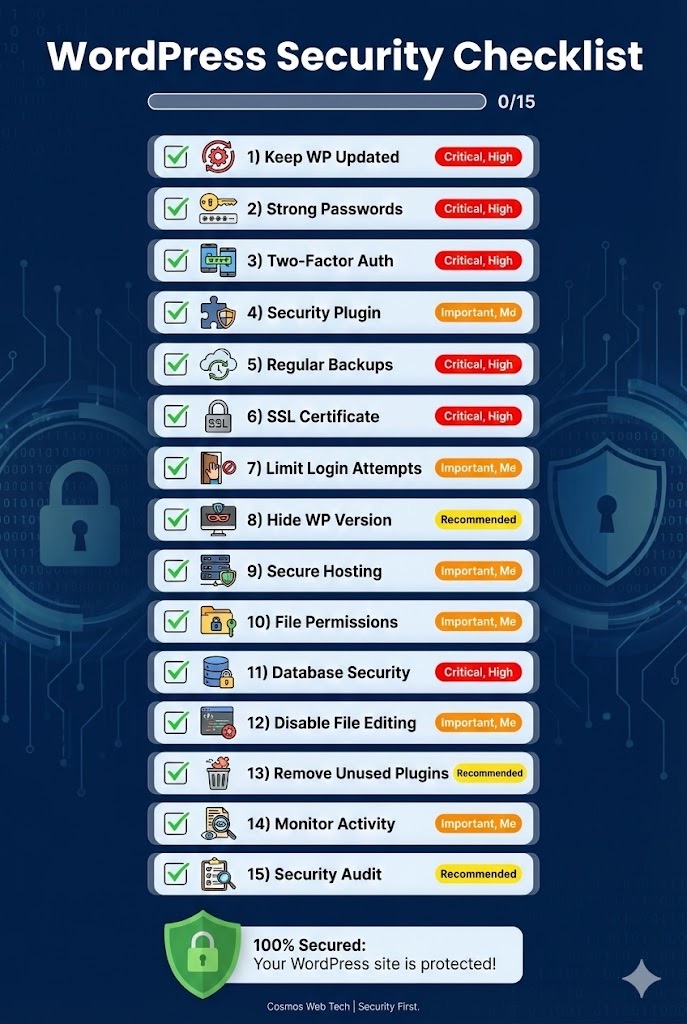
Implementing WordPress security doesn’t have to be overwhelming. Start with these priority actions:
Immediate Actions (This Week): 1. ✅ Update WordPress core, plugins, and themes 2. ✅ Install and configure a security plugin (Wordfence or Sucuri) 3. ✅ Set up automated daily backups 4. ✅ Enable two-factor authentication 5. ✅ Install SSL certificate Short-term Goals (This Month): 1. ✅ Review and strengthen all user passwords 2. ✅ Audit user accounts and permissions 3. ✅ Configure website firewall 4. ✅ Set up security monitoring 5. ✅ Test backup restoration process Ongoing Maintenance:
- Monthly security scans and updates
- Quarterly user access reviews
- Annual security assessments
- Regular backup testing
Remember: WordPress security is not a one-time setup but an ongoing process. The small investment in security measures today can save you thousands in recovery costs and lost business later. That’s why our ongoing maintenance and support services include regular security monitoring, updates, and proactive threat protection.
At Cosmos Web Tech, we help Western Sydney businesses use comprehensive WordPress security strategies. Whether you need a security audit, ongoing maintenance, or emergency support, our team is here to ensure your business website remains secure and operational.
Need help securing your WordPress website? Contact the Cosmos Web Tech team for a comprehensive security assessment and implementation plan tailored to your business needs.
Your website’s performance depends on what’s behind it. Cloud Geeks provides the managed hosting, cloud, and IT support that keeps Australian SMBs online and secure.
Ash Ganda covers how Australian SMBs are using AI, automation, and digital strategy to grow without scaling costs proportionally.
If your business is also planning a customer-facing iOS or Android app — Awesome Apps builds cross-platform mobile apps for Australian SMBs.
Part of the Ganda Tech Services family, Cosmos Web Tech delivers specialist web design and digital marketing for Australian small and medium businesses.